
Claude Code Tutorial for Non-Technical Founders and Managers

If you're running a tech company and feel like you're falling behind on AI, you're not imagining it. Things are moving fast.
Half the internet says AI builds apps in minutes. The other half says it hallucinates and breaks everything. The only way to know what's real is to spend thirty minutes with it yourself.
Nothing builds conviction like personal experience.
Preparation
If you're familiar with the terminal and wrote code at some point in your career, even if it was years ago, you can do this yourself. Claude Code will feel like pair programming with a fast junior developer.
If you've never touched a terminal, don't try this alone. Instead, grab your best developer and pull them aside for an hour. You'll drive the conversation. They'll handle the technical bits. Claude does the building.
Not ready for terminal and code yet? Try Cowork instead. It's a desktop app that automates tasks, organizes files, and analyzes data. Perfect for everyday admin work.
Installation
First, you need a Claude account. The $20/month plan works for learning. For daily use, you'll need the $100/month Pro plan.
Then, open your terminal and run these commands:
macOS, Linux, WSL:
Windows CMD:
After installation, create and enter your project folder:
When Claude Code opens, type /login to connect your account.
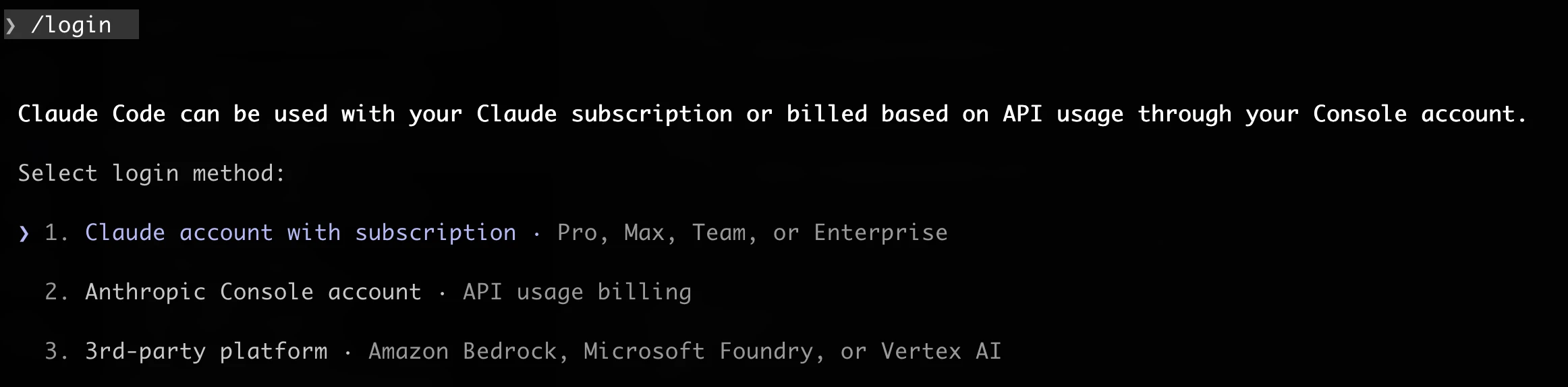
Select "1. Claude account with subscription" and follow the instructions. Don't pick the API option. It's a different billing method and I've seen people choose it by mistake, which can lead to unexpected charges.
That's it. If you get stuck, check the official documentation.
Type /model and select Opus 4.6. While learning, always use the strongest model.
Yes, it costs more. But this is an experiment. You won't spend much. And getting bad results from a cheaper model will just waste your time.
Pick a Real Problem
Pick something small and real. Something where you know the data, can describe what you want, and can tell whether the result is right.
Examples:
- A waitlist landing page for your upcoming product launch
- A calculator your sales team keeps asking for (pricing, commissions, ROI)
- A simple dashboard that pulls your MRR numbers from a spreadsheet
- An internal form that collects bug reports and emails them to your team
Set Up Your Project
Inside Claude Code, type /init and Claude will create a CLAUDE.md file for you.
I know this might sound complicated already, but stay with me. CLAUDE.md is just a simple text file where you explain your project to Claude.
Here's what it might look like:
How deep you go is up to you. For a small internal tool, staying high-level is perfectly fine.
Tip: Describe your project idea to Claude and ask it to update this file for you at any time. Then review and edit it. This is much easier than writing it yourself.
Plan Mode
Don't describe your entire project and ask Claude to build it all at once.
Like most AI coding tools, Claude Code has two modes: planning and building. Use them separately.
When you're ready with your first task, press Shift+Tab to switch to Plan Mode and describe what you want to do:
Claude will outline its approach. It'll tell you what files it'll create and what technology it'll use. Review the plan, ask questions if anything's unclear, suggest changes if needed. Don't worry about breaking anything. Your feedback only makes the plan better.
When you're happy with the plan, approve it. Claude switches to building.
This takes an extra minute but saves you from watching Claude build the wrong thing for ten. Many people skip this step or don't know about it. They jump into big tasks without planning and end up frustrated with poor results.
Watch It Build
Claude now builds your project. You'll see it creating files, writing code, and setting everything up. If it asks questions, just answer them naturally. Then it starts a development server.
Open your browser to http://localhost:3000 and there it is. A working waitlist page. Built in minutes.
This is the moment that changes your perspective. You described a page in two sentences and a working version appeared in minutes.
Iterate Like a Product Manager
Of course, the first version won't be exactly what you wanted. Possibly the wrong font, or maybe the layout feels off.
That's fine. This is where it gets fun, and this is the part any founder can drive, technical or not. You don't touch code. You just keep talking:
- Don't like the colors? "Make it darker. Use a navy background with white text and a bright green signup button."
- Want social proof? "Add a section with three short testimonial quotes. Use placeholder text for now."
- See a bug? Don't say "it's broken." Paste the actual error message and say "Fix this."
Over time, you'll develop a feel for when to use Plan Mode and when to skip it. Small fixes, like a color change or a typo, don't need a plan. Bigger features always do. It's the same instinct you use when managing people: some tasks need a brief, others just need a quick message.
Tips That Will Save You Hours
1. Build in Layers, Not All at Once
Don't ask for everything in one go. Build the simplest version first, test it, then add the next thing. Each small step gives Claude a solid foundation for the next one. This is how professional developers work, and it's even more important with AI.
After each working step, commit your code with git. This gives you checkpoints to roll back to if something breaks. Claude can help with this too, just say "commit these changes."
2. Keep Your Conversations Clean
Claude has a limited context window, basically short-term memory. As your conversation gets longer, Claude loses track of earlier details and makes more mistakes.
- Type
/clearbetween unrelated tasks - Press
ESCto stop Claude if you see it going in the wrong direction - Don't be afraid to ask clarifying questions
The Bottom Line
There's a lot more under the hood. Subagents, MCP servers, custom tooling and layers of automation that go much deeper. But even at this basic level, if you hand this workflow to your team, you'll see the difference immediately.
And Claude Code isn't the only tool like this. Cursor, Codex, Antigravity, and others are competing hard in this space. That's good news for you. The tools and models are getting better every month.
The important thing isn't which tool you pick. It's that you and your team start.

About The Author:
Val Kamenski is a fractional CTO, board advisor, and startup mentor with over 14 years of experience building and scaling software companies. He now helps founders and executives make better technology decisions, and navigate the fast-changing world of AI and software development.